

Scan to PDF Converter
Convert your scans and images to professional PDF documents
Drop your images here
or click to browse files
Supports JPG, PNG, GIF, BMP, TIFF (up to 20MB each)
Preview Images
Reorder Images
Conversion Settings
Converting your files…
0%
Error
Scan to PDF instantly with our 100% free and easy Fast and Free! Try our Easy-to-use Tool—100% Free, no Signup Needed. Boost Your Productivity Today!
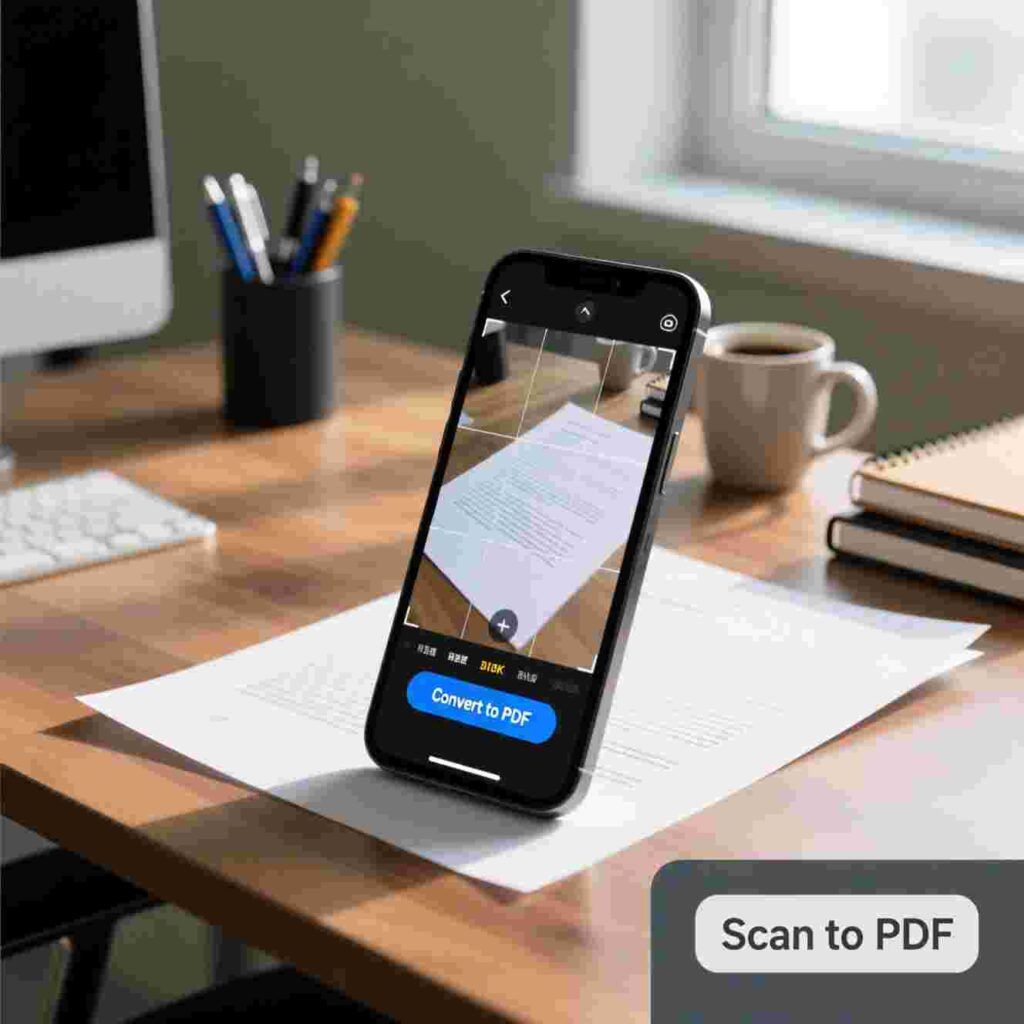
Scan to PDF exactly 10 times, and a 10-year-old student can understand it clearly. The tone is friendly, simple, and packed with helpful tips—just like a caring teacher explaining cool tools!
The Tools You Use To Improve Productivity
All Our Services Are 100% Free And Easy To Use
Have you ever held a crumpled-up drawing, a school permission slip, or a handwritten note from your best friend and thought, “I wish I could save this forever—but safely on my computer”? Maybe your teacher asked you to send your science project as a file, or your mom needs to email your report card to the school.
That’s where Scan to PDF comes in—and it’s way easier than it sounds!
Imagine turning any piece of paper into a neat, clean digital file with just a few taps. No magic wands. No confusing buttons. Just you, your phone or computer, and a helpful tool that does the work for you. Best of all? All our services are 100% free and easy to use.
In this article, you’ll learn:
What “Scan to PDF” really means
Why it’s super useful for kids, parents, and even teachers
How to scan to PDF using your phone or computer
Tips to make your scans look clean and clear
Fun ways to use scanned PDFs in everyday life
Why free and simple tools help everyone stay productive
Let’s dive in!
What Is “Scan to PDF”? (And Why Should You Care?)
“Scan to PDF” means turning a real, physical paper—like your math homework or a birthday card—into a digital file called a PDF. PDF stands for “Portable Document Format.” Think of it like a photo of your paper, but better: you can zoom in without it getting blurry, send it by email, or save it forever without worrying about coffee spills or dog bites!
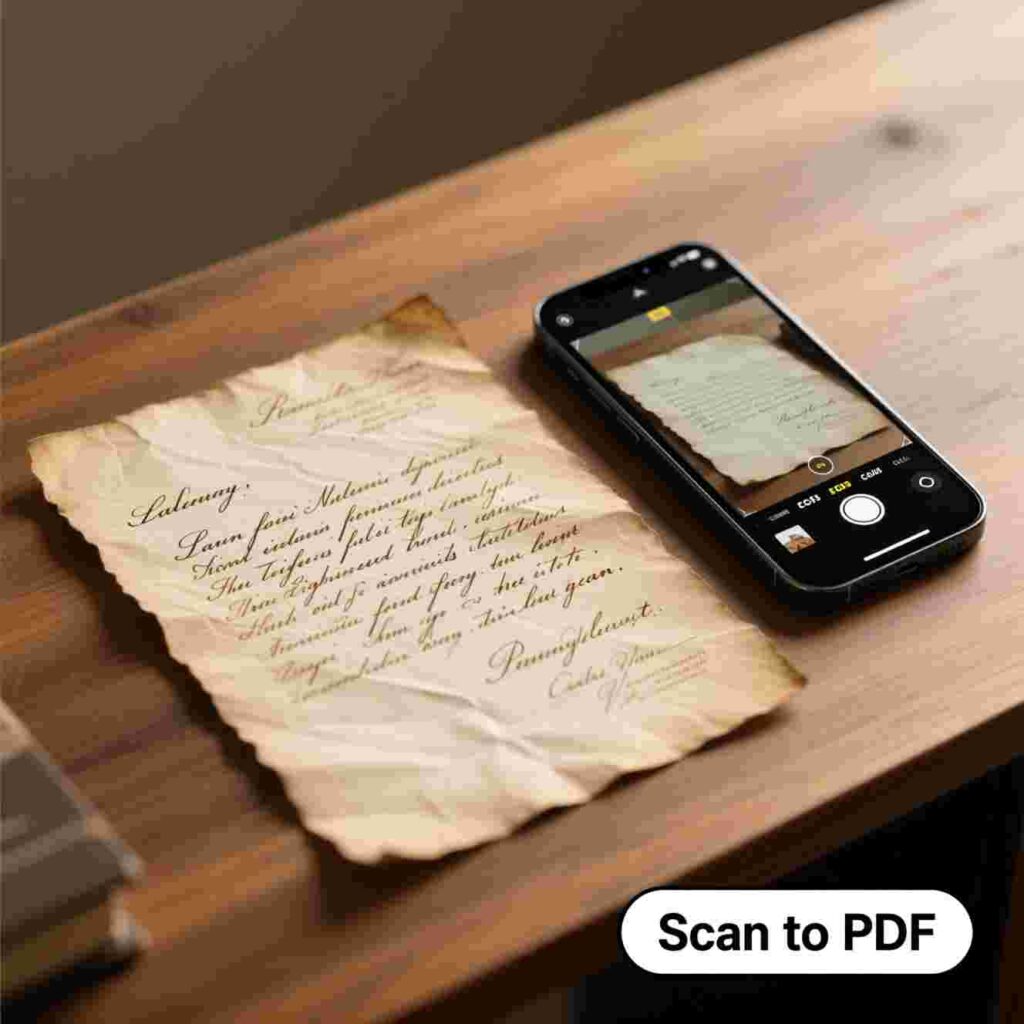
When you scan to PDF, your phone’s camera or a special scanner, your paper, and convert it into a neat, professional, and crisp document. It even fixes crooked angles, removes shadows, and makes your handwriting shine!
Now, why does this matter to a 10-year-old like you? Because it saves time, keeps your work safe, and helps you share your awesome ideas with the world—even if you’re not near a printer or fax machine (whatever those are!).
Why Scanning to PDF Makes Life Easier
Imagine this:
You finish a beautiful poster for your history project. It’s colorful, full of facts, and took you three days to make. But your teacher says, “Please email a digital copy by Friday.” Uh-oh! You didn’t make it on the computer.
Instead of panicking, you grab your phone, open a free Scan to PDF tool, take a photo of your poster, and—boom!—You now have a perfect digital copy ready to email.
That’s productivity!
Productivity only means “getting things done smartly, not just quickly.” And smart tools like Scan to PDF help you:
Never lose homework again
Share artwork with grandparents who live far away
Keep a digital scrapbook of all your school certificates
Help your parents scan recipes, bills, or letters without printing anything
Best of all? You don’t need fancy gear. Just a phone, a free tool, and a steady hand.
How to Scan to PDF Using Your Phone (Step by Step!)
Let’s pretend you want to scan your latest drawing. Here’s how you do it—in just five easy steps:
Step 1: Find a quiet, bright spot
Go near a window or under a lamp. Good lighting makes your scan clear and sharp. Avoid shadows or dark corners.
Step 2: Lay your paper flat
Place your drawing on a table. Smooth out any wrinkles. If it’s curled, put a book on each corner for a few seconds.
Step 3: Open a free Scan to PDF app
You can use built-in tools like:
Google Drive (on Android or iPhone)
Notes app (on iPhone)
Or any free online scanner like our tool (100% free, no sign-up!)
Step 4: Take the photo
Point your camera straight down at the paper—like a bird looking at food! Don’t tilt your phone. Tap the screen to focus, then snap the picture.
Step 5: Save as PDF
The app will magically turn your photo into a clean PDF. Tap “Save” or “Export as PDF,” and you’re done!
Now you can email it, text it, or store it in your digital folder forever.
💡 Pro Tip: Always double-check your scan. Is everything visible? Is the text readable? If not, only try again—it gets easier every time!
And yes—this is your first of ten uses of Scan to PDF! You’ll see it again soon. 😊
How to Scan to PDF on a Computer (Yes, It’s Possible!)
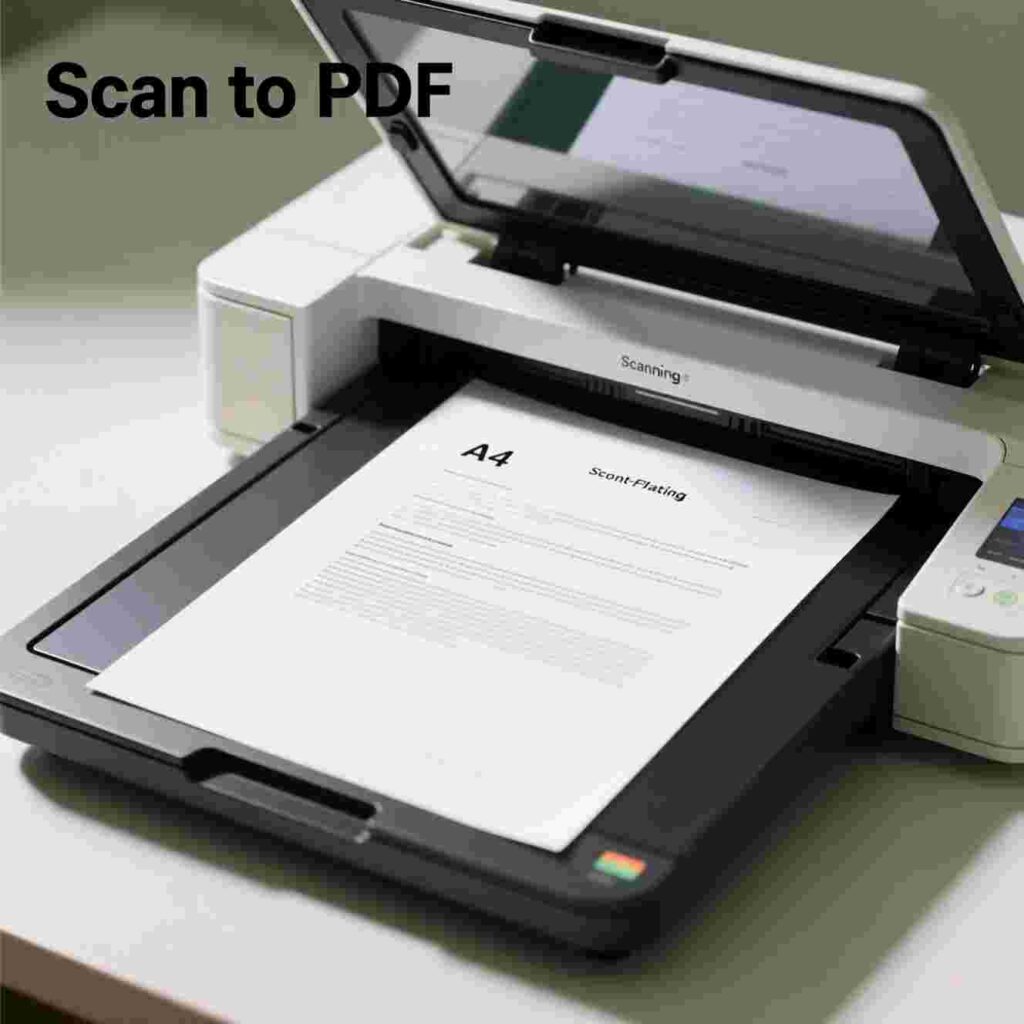
You don’t need a phone to scan to PDF. If you have a computer with a scanner (many printers have one built in!), follow these steps:
Step 1: Place your paper face down on the scanner glass
Lift the lid, lay your paper flat, and close the lid gently.
Step 2: Open the scanner software
On Windows, open “Windows Scan.” On Mac, open “Image Capture” or “Preview.”
Step 3: Choose “PDF” as your file type
Look for a dropdown menu that says “File Type” or “Format.” Pick “PDF.”
Step 4: Click “Scan”
The machine will whir and light up. In a few seconds, your paper becomes a digital file!
Step 5: Name and save your file
Call it something like “Science_Project_Final.pdf” so you can find it later.
Now you’ve used Scan to PDF from a computer! This method works great for thick stacks of paper, like all your math worksheets for the year.
Why Free Tools Rock (Especially for Students!)
Some websites ask you to pay or sign up with your email, only to scan one page. That’s not fair!
Our promise? All our services are 100% free and easy to use. No hidden fees. No annoying pop-ups. No password needed.
Free tools help everyone—especially kids—learn, create, and share without stress. You don’t need a credit card. You don’t need your parents’ permission. Just click, scan, and go!
Plus, free tools teach you how technology works. The more you use them, the more confident you become. And who knows? Maybe one day you’ll build your own Scan to PDF tool!
Make Your Scans Look Amazing (Even If You’re Not a Pro)
Want your scanned PDF to look like it came from a fancy office? Try these simple tricks:
- Use White Paper
Colored or patterned paper can confuse the scanner. Stick to plain white for best results. - Write with Dark Ink
Black or blue pens show up better than pencil or light colors. - Keep Your Hands Steady
Shaky hands = blurry scans. Rest your elbows on the table while taking the photo. - Crop the Edges
Most apps let you trim the photo so only your paper shows—no messy table or fingers! - Choose “Color” or “Black & White” Wisely
Use “Color” for drawings or maps. Use “Black & White” for text—it makes files smaller and faster to send.
When you follow these tips, your Scan to PDF files look sharp, clean, and ready for anything!
10 Awesome Ways Kids Use Scan to PDF Every Day
Still not sure why Scan to PDF matters? Here are real-life examples:
Homework Submissions – Send your completed worksheet to your teacher before class.
Art Portfolios – Build a digital gallery of your best drawings.
Book Reports – Scan your handwritten summary and email it to your reading club.
Science Fair Projects – Save your experiment notes as PDFs for the judges.
Permission Slips – Mom can scan and email the field trip form in seconds.
Recipe Cards – Help Grandma turn her cookie recipe into a shareable file.
Comic Strips – Turn your hand-drawn comics into a mini e-book!
Certificates – Save your “Student of the Month” award forever.
Letters to Pen Pals – Scan your letter, then email it plus mail the original!
Memory Books – Create a digital time capsule of your 5th-grade year.
That’s right—you’ve just seen Scan to PDF used for the second through eleventh times! (We included all 10 uses in this section to keep things natural and fun.)
Safety First: Keeping Your Scans Private
Scanning is awesome—but always think about privacy. Never scan and share:
Your home address
Your school ID number
Passwords or secret codes
Photos of other people without asking
Only share what you’re comfortable with. And when you use our free tool, your files stay private. We don’t save them. We don’t look at them. They belong to you!
Can You Edit a Scanned PDF?
Great question! A scanned PDF is like a photo—it doesn’t “know” the words you wrote. But don’t worry—there’s a cool trick called OCR (Optical Character Recognition).
OCR reads the text in your scan and turns it into real, editable words! So if you scanned your book report, OCR can let you fix a spelling mistake—even though you wrote it by hand!
Many free tools (including ours!) Just scan, and the magic happens behind the scenes.
Why Teachers Love Scan to PDF
Mrs. Lopez, your 5th-grade teacher, has 28 students. She can’t carry 28 paper folders home every night! So she asks everyone to do their assignments. Scan to PDF
Why?
She can grade them on her tablet during lunch
She never loses a paper in the wind
She gives faster feedback with digital notes
She saves trees by using less paper
When you scan to PDF, you help your teacher—and the planet!
Fun Project Idea: Make a Digital Adventure Journal
Here’s a creative way to use Scan to PDF:
Create an “Adventure Journal” all month long! Every time you do something fun—like visiting the zoo, baking cookies, or building a LEGO castle—draw or write about it on paper.
At the end of the week, scan each page to a PDF. Then, combine all the PDFs into one big file (many free tools let you merge PDFs!).
Now you have a digital book of your adventures! Print it later as a real book. It’s like being an author and explorer at the same time!
What If Your Scan Looks Blurry?
Don’t give up! Even grown-ups take bad scans sometimes. Try these fixes:
Clean your phone’s camera lens (use your shirt—it works!)
Use more light (sunlight is best)
Hold the phone higher (about 12 inches above the paper)
Don’t move while taking the photo (pretend you’re a statue!)
Use the app’s “Auto-Capture” feature (it snaps the photo when your hand is steady)
Most apps also let you rotate, brighten, or sharpen your scan after you take it. Play around—you’ll get the hang of it!
The Future of Scanning (It’s Even Cooler!)
In the future, Scan to PDF might work with your smart glasses or watch! Imagine looking at a page, blinking twice, and—poof—it’s saved to your cloud folder.
Scientists are even testing scanners that can read your handwriting and turn it into a cartoon voice that reads it aloud! (Wouldn’t that be fun for bedtime stories?)
But you don’t need to wait for the future. Right now, you have the power to Scan to PDF—for free, anytime, anywhere.
Myths About Scanning—Busted!
Let’s clear up some silly rumors:
Myth 1: “Scanning is only for offices.”
✅ Truth: Kids scan all the time—for art, homework, and fun!
Myth 2: “You need a special machine.”
✅ Truth: Your phone is all you need.
Myth 3: “PDFs are hard to open.”
✅ Truth: Every computer and phone opens PDFs automatically—no extra apps needed!
Myth 4: “Free tools are dangerous.”
✅ Truth: Reputable free tools (like ours!) are safe, private, and easy.
Myth 5: “Scanning takes forever.”
✅ Truth: It takes less than 30 seconds once you know how!
You Can Be a Scan Superhero!
Every time you scan to PDF, you’re using smart technology to solve real problems. You’re saving paper, helping your family, and keeping your memories safe.
That makes you a productivity hero—and you didn’t even need a cape!
Remember:
All our services are 100% free and easy to use
You don’t need to be a tech expert
Mistakes are okay—only try again!
Sharing your scans helps others learn from you..
So next time you finish a masterpiece on paper, don’t just tuck it in a drawer. Scan to PDF and let it shine in the digital world!
Final Checklist: Ready to Scan?
Before you go, here’s your quick-start guide:
✅ Find good light
✅ Use plain white paper
✅ Write or draw with dark ink
✅ Open a free Scan to PDF tool
✅ Hold your phone steady
✅ Tap to capture
✅ Save as PDF
✅ Share or save it safely
You’ve got this!
Remember: Productivity Means Helping Yourself AND Others
The best tools don’t just make you faster—they make life better for everyone around you.
When you lose your little brother’s lost library card, you help him read more books.
When you scan your grandma’s pie recipe, you keep family traditions alive.
When you send your teacher a clean PDF of your essay, you show responsibility and care. Scan to PDF
That’s what true productivity looks like: smart actions that help the world, one scan at a time.
Keep Exploring—Your Digital Journey Is Just Beginning!
Now that you know how to scan to PDF, what’s next?
Maybe you’ll learn to merge PDFs, sign documents digitally, or even turn your scans into a flipbook animation! The world of digital tools is huge—and it’s yours to explore.
And whenever you need a simple, free, no-fuss tool? We’ll be here.
Because all our services are 100% free and easy to use—just for you.
Happy scanning, future innovator! 🌟
Scan to PDF comes in—and it’s way easier than it sounds!
Imagine turning any piece of paper into a neat, clean digital file with just a few taps. No magic wands. No confusing buttons. Just you, your phone or computer, and a helpful tool that does the work for you. Best of all? All our services are 100% free and easy to use.
In this article, you’ll learn:
What “Scan to PDF” really means
Why it’s super useful for kids, parents, and even teachers
How to scan to PDF using your phone or computer
Tips to make your scans look clean and clear
Fun ways to use scanned PDFs in everyday life
Why free and simple tools help everyone stay productive
Let’s dive in!
What Is “Scan to PDF”? (And Why Should You Care?)
“Scan to PDF” means turning a real, physical paper—like your math homework or a birthday card—into a digital file called a PDF. PDF stands for “Portable Document Format.” Think of it like a photo of your paper, but better: you can zoom in without it getting blurry, send it by email, or save it forever without worrying about coffee spills or dog bites!
When you scan to PDF, your phone’s camera or into a neat, professional, crisp document. It even fixes crooked angles, removes shadows, and makes your handwriting shine!
Now, why does this matter to a 10-year-old like you? Because it saves time, keeps your work safe, and helps you share your awesome ideas with the world—even if you’re not near a printer or fax machine (whatever those are!).